Using the Web Interface
Overview
When Wi-Fi is enabled on the ZT-100, the device hosts a web interface that mirrors the front-panel controls and provides administrative tools.
Mobile App Availability
The app is available on the Apple App Store as Zonge ZT-100. An Android version is planned for release soon.
Hotspot mode (default):
Join the device Wi-Fi network (SSID typically ZT-100).
Open a browser and go to
http://10.10.10.10/.Or use the mobile app, which automatically connects to the correct network and IP address.
If the device is on a local network, use its IP address instead.
Main Page Controls
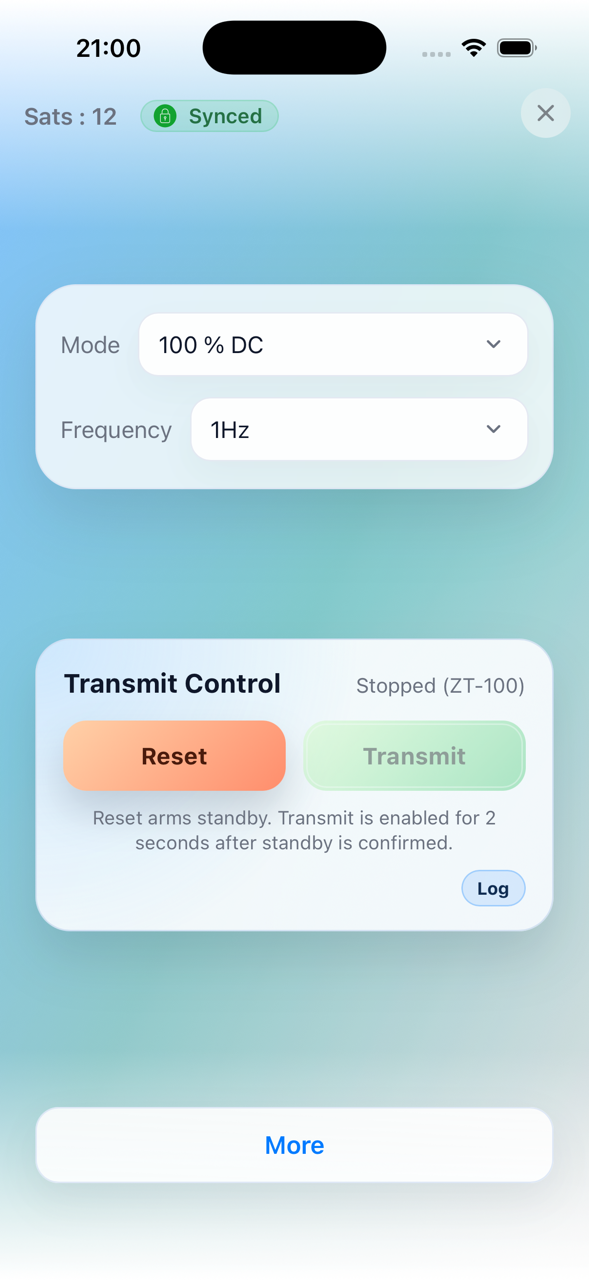
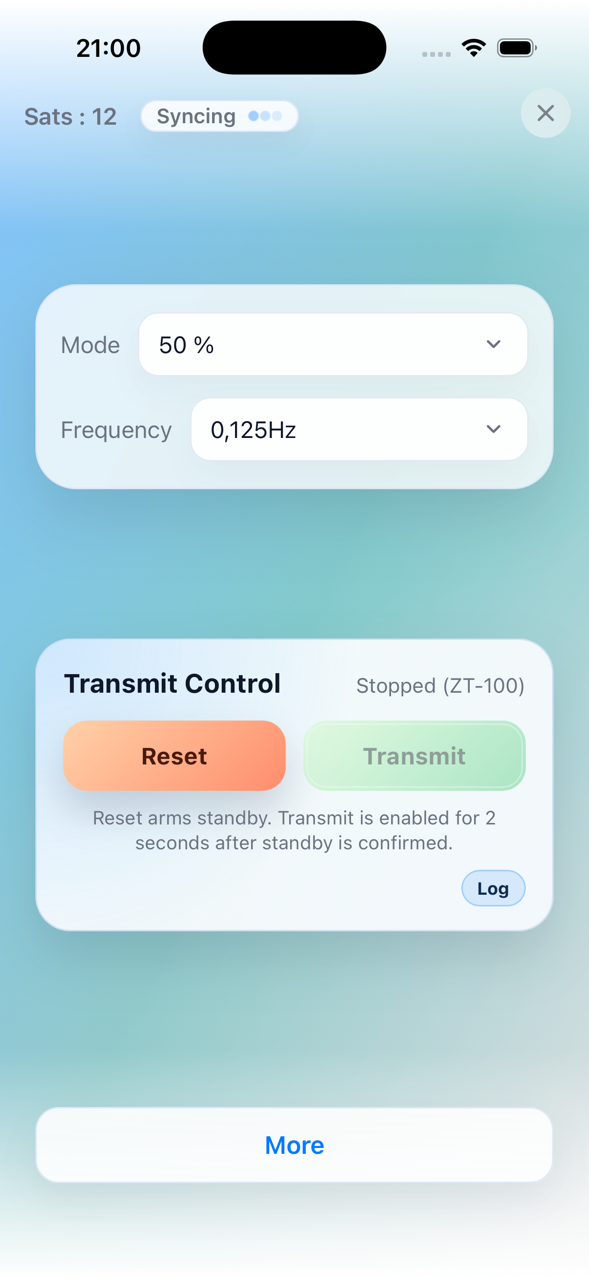
The main page shows GPS status, sync status, mode, and frequency. It also provides transmit control and the TX log.
|
|
Mode
Select 100% DC, 50%, Custom, or MMR 5Hz.
In Basic XMT mode, only 100% DC and 50% appear.
In Advanced XMT mode, all four modes appear.
Frequency
Sets frequency from 0.0078125 Hz up to 8192 Hz.
In 50% mode the maximum is limited (currently 32 Hz).
In MMR 5Hz mode, frequency selection is hidden.
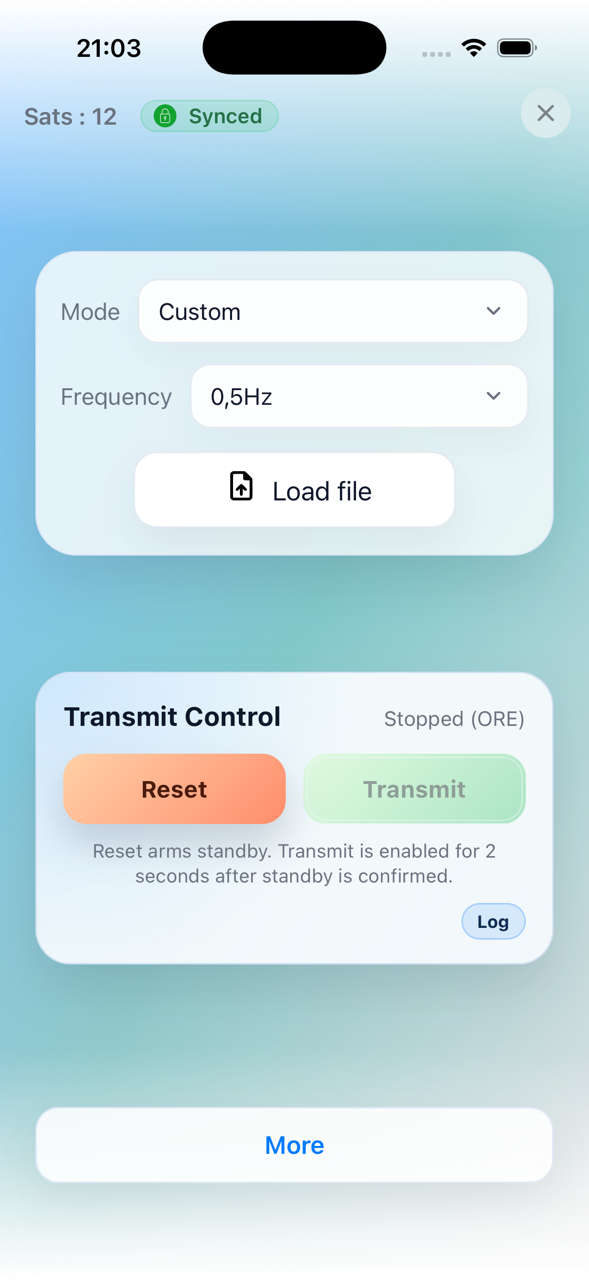
Custom Files (Custom mode)
A file loader and file list appear only in Custom mode.
Upload .usm files. The UI rejects files larger than 256 KB.
Use the list to select the active custom file.
Transmit Control
RESET: Starts the reset/arm sequence, or stops transmit.
TRANSMIT: Starts transmit during the arm window, or stops transmit.
Status line: Shows Stopped, Standby ready, Transmitting, and includes the current status label in parentheses.
More
Opens a panel with GPS time, latitude, longitude, altitude, and XMT Mode (Basic/Advanced).
You can switch between Basic and Advanced here, or from the device screen menu (More Info -> XMT Mode).
How to Transmit (Web UI)
Click Reset.
You then have about 2 seconds to click Transmit.
If everything is fine and load checks pass, transmit starts.
Click Stop to end transmit.
Admin Page
Navigate to /admin for firmware and FPGA updates.
Update Main Firmware: Upload the firmware for the main controller.
Burn FPGA: Upload the FPGA image.
Other Hardware Targets: Select the target listed in the UI and upload the matching firmware file.
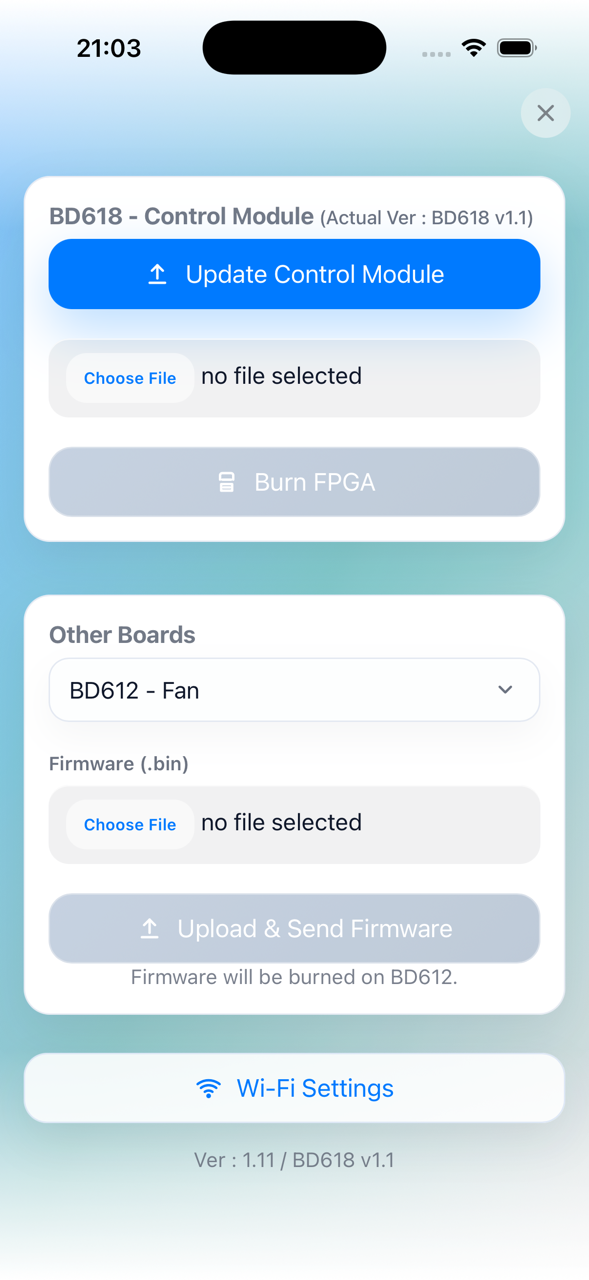
If the selected target and firmware file do not match, the upload is rejected.
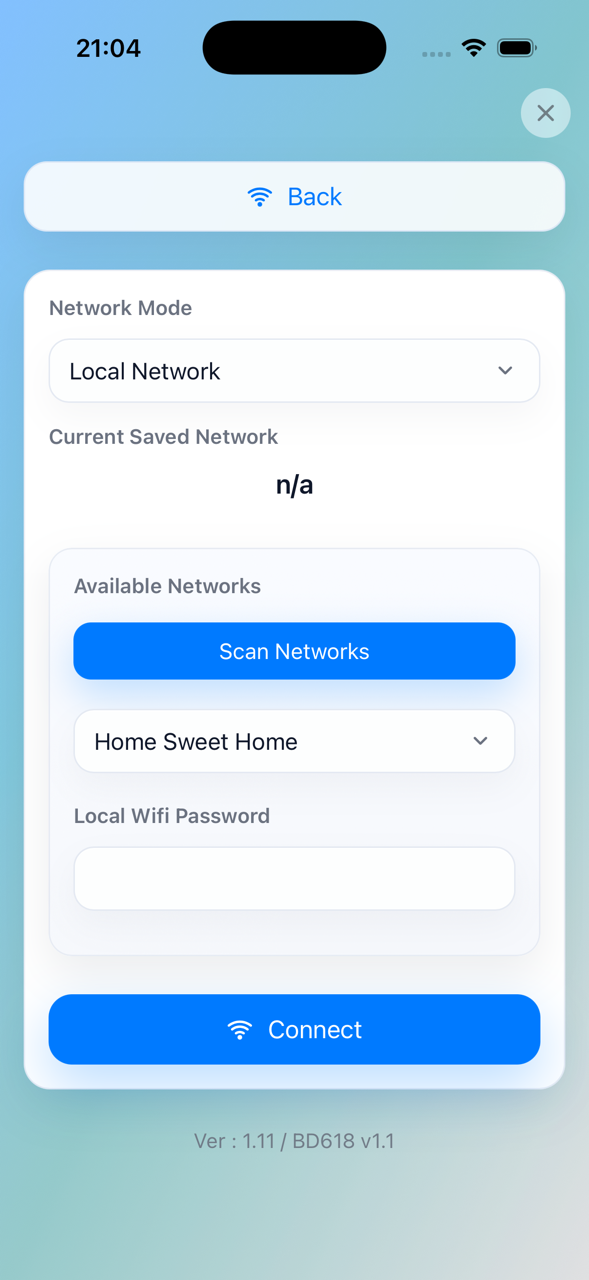
Wi-Fi Settings Page
Navigate to /wifi from the Admin page.
Network Mode: Hotspot or Local Network.
Scan Networks: Populate the available SSID list.
Connect: Apply the selected mode and credentials.